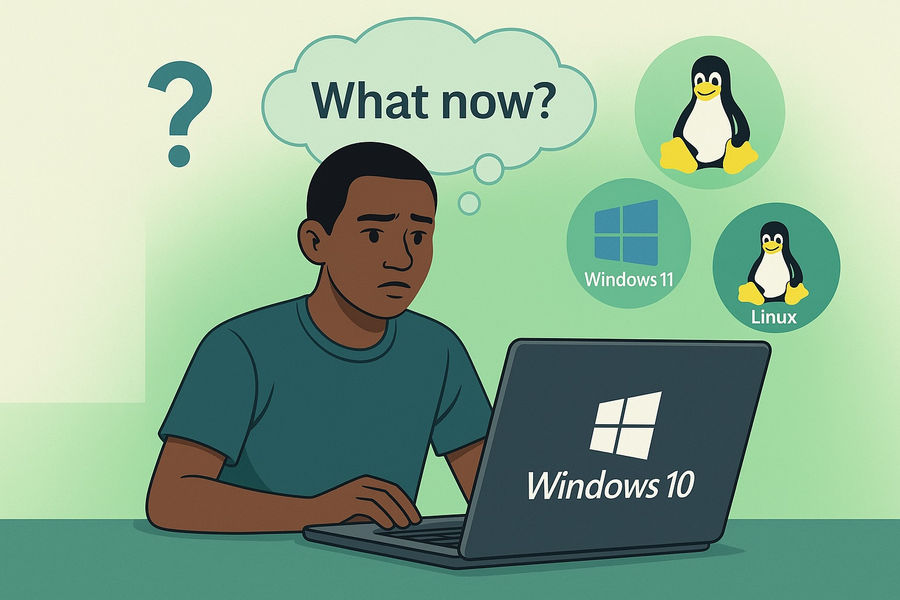
On October 14, 2025, Microsoft officially ended support for Windows 10. No more security updates. No more bug fixes. No more technical support.
For millions of laptop users in Kenya — and across the world — this creates a real problem. Your Windows 10 machine still works. Your files are still there. Everything looks normal. But underneath, the system is now frozen in time, getting more vulnerable with each passing month.
So what do you actually do? The answer depends on one simple question: Can your laptop run Windows 11?
Why End of Support for Windows 10 Matters
When Microsoft stops supporting an operating system, three critical things happen:
- No more security updates → Your system becomes vulnerable to malware, ransomware, and cyberattacks
- No compatibility updates → New apps, printers, and browsers may stop working properly
- No official help → Driver issues or system errors are now your problem to solve
For schools, NGOs, and businesses handling sensitive data, staying on Windows 10 is a growing risk. Unsupported systems become easy entry points for security breaches.
Step 1: Check If Your Laptop Can Run Windows 11
Before making any decisions, you need to know if your hardware is compatible with Windows 11. Microsoft set strict requirements, and many older laptops — especially those bought before 2018 — don't meet them.
Windows 11 System Requirements
- Processor: Intel 8th Gen (2018) or newer, AMD Ryzen 2000 series or newer
- Architecture: 64-bit processor, 1 GHz+ with 2+ cores
- Memory: 4 GB RAM minimum (8 GB recommended)
- Storage: 64 GB minimum (256 GB recommended)
- Firmware: UEFI with Secure Boot capability
- TPM: Version 2.0 required
- Graphics: DirectX 12 compatible, WDDM 2.0 driver
- Display: 9 inches or larger, 720p minimum resolution
The biggest blocker for most people? TPM 2.0 (Trusted Platform Module). This security chip wasn't standard in laptops until around 2016-2018, and many budget machines still don't have it.
How to Check if Your Laptop is Ready for Windows 11
Option 1: Use Microsoft's PC Health Check tool. Download it from Microsoft's website. It will scan your system and tell you immediately whether Windows 11 is compatible.
Option 2: Check TPM manually.
- Press Windows + R
- Type tpm.msc and hit Enter
- If you see "Compatible TPM cannot be found," your laptop doesn't have TPM 2.0
If your laptop passes these checks, you have a clear upgrade path. If it doesn't, you have a different — but still workable — solution.
Option 1: Upgrade to Windows 11 (If Your Laptop Qualifies)
If your hardware meets the requirements, upgrading to Windows 11 is the most straightforward option.
Security First: Windows 11 is built around Secure Boot and TPM 2.0, protecting against firmware attacks, ransomware, and modern security threats that Windows 10 can no longer defend against.
Optimized Performance: Designed for modern hardware (2018 and newer), it's faster, runs cooler, and delivers better battery efficiency than Windows 10.
Better User Experience: A cleaner interface, improved window snapping, virtual desktops, and better multitasking tools improve productivity for office workers, teachers, and students.
Microsoft 365 Ready: Seamless integration with Teams, OneDrive, and Office apps — no version conflicts or compatibility issues.
About Genuine Licensing: If you have a legitimate Windows 10 license, the Windows 11 upgrade is free. However, if your Windows 10 installation wasn't properly licensed, you'll need a genuine Windows 11 license.
Important: Kolm Solutions is a Microsoft Authorized Refurbisher (MAR) and Microsoft Partner in Kenya. This means we can provide genuine Windows 11 Pro licenses at locally affordable prices — fully legal, audit-proof, and backed by Microsoft. These are not gray-market keys. We work with schools, NGOs, and companies to ensure safe, compliant upgrades. Unofficial or "cracked" activations expose your network to legal and cybersecurity risks.
What You Keep: All your files and documents; all your installed programs (if compatible with Windows 11); familiar Windows interface and workflow; compatibility with Windows-specific software.
What Changes: New interface (centered taskbar, rounded corners, redesigned menus); some older programs may not work; slightly higher system resource usage.
How to Upgrade:
- Back up your important files (always do this first)
- Go to Settings → Windows Update
- If Windows 11 is available, you'll see an option to upgrade
- Follow the installation steps
- The process takes 1-3 hours depending on your system
This path makes sense if your laptop is relatively recent (2018 or newer), you rely on Windows-specific software (Adobe Suite, AutoCAD, specialized business apps), you're comfortable with the Windows ecosystem, and you don't want to learn a new operating system.
Option 2: Switch to Linux (If Your Laptop Doesn't Qualify)
If your laptop can't run Windows 11 — or if you simply don't want to deal with Windows licensing anymore — Linux is a practical, free alternative.
Linux isn't some obscure "hacker operating system." It's a mature, user-friendly system that millions of people use daily for work, education, and personal computing. Most of the world's servers, smartphones (Android is based on Linux), and even government systems run on Linux.
Why Linux Makes Sense Now:
- It's completely free. No license fees. No subscriptions. No hidden costs.
- It runs on older hardware. That laptop from 2015 that can't run Windows 11? Linux will make it feel fast again. No TPM required.
- It's secure. Because permissions are separated by design, even if one user account gets infected, the rest of the system remains protected.
- It's familiar. Modern Linux distributions look and feel similar to Windows.
- Fast on older hardware. A 2014-era laptop can run modern apps smoothly on Linux while struggling under Windows 11.
Linux Software Alternatives
- Office Suite: LibreOffice, OnlyOffice — opens and saves Word, Excel, PowerPoint files
- Email: Thunderbird, Evolution — works with Gmail, Outlook, Yahoo
- Web Browser: Firefox, Brave, Chromium — identical experience to Windows versions
- PDF Viewer: Built-in PDF readers — view, edit, and sign PDFs
- Video Calls: Zoom (native), Teams (web), Jitsi — full video conferencing support
- Media Player: VLC Media Player — plays all video and audio formats
- Photo Editing: GIMP, Krita — not identical, but powerful alternatives
- Vector Design: Inkscape — full vector graphics editing
- Development: VS Code, Eclipse, JetBrains — same tools, often better performance
What doesn't work (or is limited): Adobe Creative Suite (Photoshop, Illustrator, Premiere Pro); AutoCAD and specialized engineering software; some gaming; proprietary Windows-only business software.
Which Linux Should You Use?
Linux Mint (Recommended): Looks and feels like Windows, extremely stable, huge community support, pre-installed with essential software, low system requirements.
Ubuntu: Very popular with massive community, slightly different interface but still user-friendly, excellent hardware compatibility.
Zorin OS: Designed specifically to look and feel like Windows, beautiful modern interface, great for Windows refugees.
How to Switch to Linux (Without Losing Your Data)
You don't have to delete Windows immediately. You can try Linux first.
Option A: Try Linux from a USB (No Installation). Download Linux Mint ISO, use Rufus or Etcher to create a bootable USB, restart and boot from USB (F12, F2, or Del during startup), try Linux — nothing is permanently installed. The safest way to test.
Option B: Dual Boot (Keep Both Systems). Install Linux alongside Windows. When your laptop starts, you choose which OS to use. You keep Windows as a backup, but it takes up storage space for both systems.
Option C: Full Switch (Replace Windows). Back up your files and replace Windows 10 with Linux completely. Reclaim all your storage and get a simpler setup, but there's no going back without reinstalling Windows.
What Happens If You Just... Do Nothing?
Let's be honest: millions of people will do nothing. Here's what that actually means:
Short term (next 6 months): Everything feels normal. No immediate problems.
Medium term (6-18 months): New malware starts targeting unpatched Windows 10 systems. Software companies begin dropping Windows 10 support. Security vulnerabilities pile up with no fixes.
Long term (18+ months): Major security risks, increasingly incompatible with modern software, higher chance of ransomware and data theft. Organizations may block outdated systems from their networks.
It's like leaving your front door unlocked. Nothing might happen today. But the risk grows every single day. For businesses, schools, or any organization handling other people's data, staying on Windows 10 isn't just risky — it's irresponsible.
Digital Sustainability Matters
Every year, thousands of usable laptops in Kenya are discarded simply because they can't install the newest Windows version. That's avoidable waste. Linux keeps these machines productive for another 5-7 years. Combined with genuine licensing for systems that do qualify for Windows 11, this creates a smarter, more sustainable approach.
What You Should Do Now
- Check if your laptop can run Windows 11 (use Microsoft's PC Health Check tool)
- Back up your important files (external drive, cloud storage, or both)
- Decide which path makes sense (Windows 11 or Linux)
- If choosing Linux: download Linux Mint, create a bootable USB, and test it
- If choosing Windows 11: start the upgrade process, ensuring you have proper licensing
Windows 10 support ended on October 14, 2025. But your laptop's useful life doesn't have to end with it. You have options. You have time. Now you just need to pick a path and take the first step.
You can check out our MS software page here.